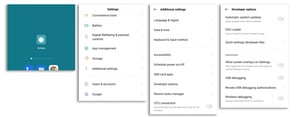

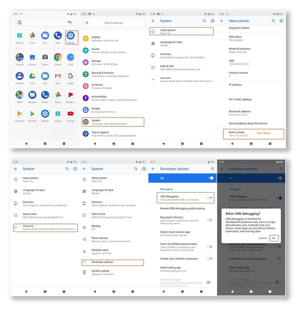
How to enable USB Debugging on your device.




- Open Settings
- Select About phone
- Tap on Build number 7 times
- Go back and select System
- Select Advanced
- Select Developer options
- Select USB debugging
- Select OK to prompt
Connect phone and accept RSA prompt on device.
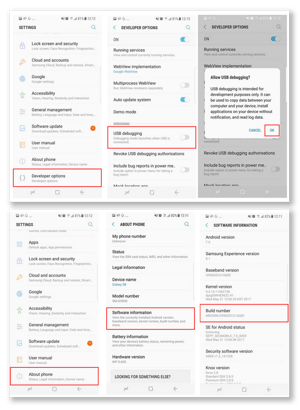
Samsung
- Open Settings
- Select About phone
- Select Software information
- Tap on Build number 7 times
- Tap the back button and select Developer options
- Select USB debugging
- Select OK to prompt
Connect phone and accept RSA prompt on device.
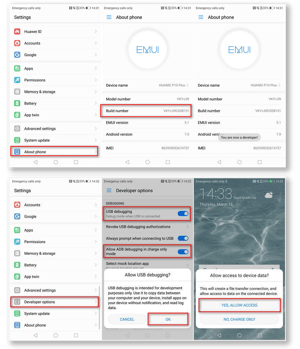
Huawei
- Open Settings
- Select System
- Tap on Build number 7 times
- Tap the back button and select Developer options
- Select USB debugging
- Select OK to prompt
- Select Allow ADB debugging in charge only mode.
Connect phone and accept RSA prompt on device.
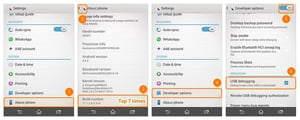
Sony
- Open Settings
- Select About phone
- Tap on Build number 7 times
- Click back and select Developer options
- Select USB debugging
- Select OK to prompt
Connect phone and accept RSA prompt on device.
Xiaomi
Follow the Developer menu / USB debugging process above as normal.
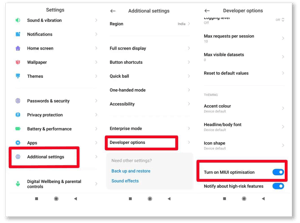
- Go to Settings Menu
- Additional Settings
- Developer options
- “Turn on MIUI optimization” – Disable this Option
Oppo
- Unlock your OPPO phone and go to Settings. Scroll down the screen and open About Phone.
- Under About Phone, find the “Version” or “Build number” and tap seven times on it.
- Tap on settings
- Tap on Additional settings
- Tap on Developer Options
- Enable USB debugging
- Tap on OK